
 Login
Login

Can’t see or use your camera and microphone set up when choosing the Regular Streaming broadcast mode on Cam4?
Please make sure that you are logged into Cam4 and can access the Regular Streaming tab after pressing the Broadcast button
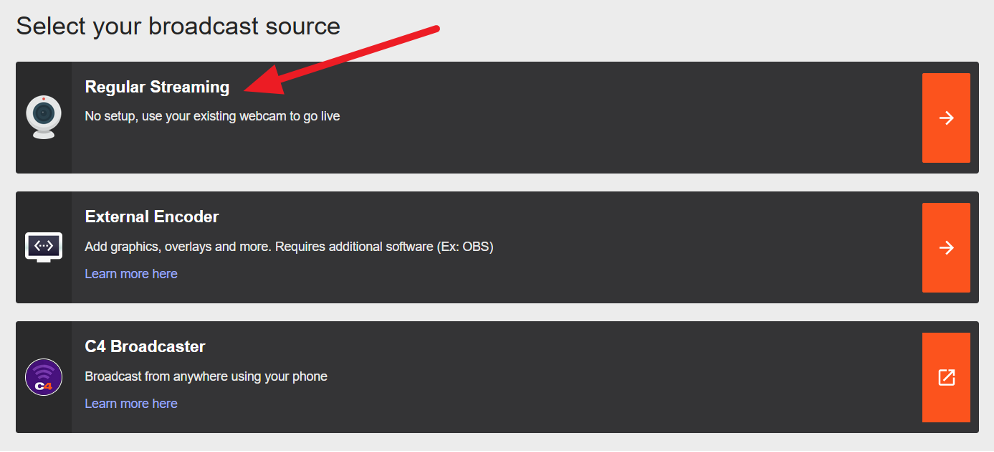
I get a message that my camera or microphone is blocked or disabled. No camera or microphone appears on my CAM4 broadcast window.
IMPORTANT FIRST STEP: Before checking browser settings, verify your operating system allows camera/microphone access:
- Windows 10/11: Settings → Privacy → Camera/Microphone → Ensure "Allow apps to access your camera/microphone" is ON and your browser is checked
- macOS: System Preferences → Security & Privacy → Camera/Microphone → Check the box next to your browser name (you may need to restart browser after enabling)
If system permissions are blocked, your browser cannot access the camera even if you click "Allow."
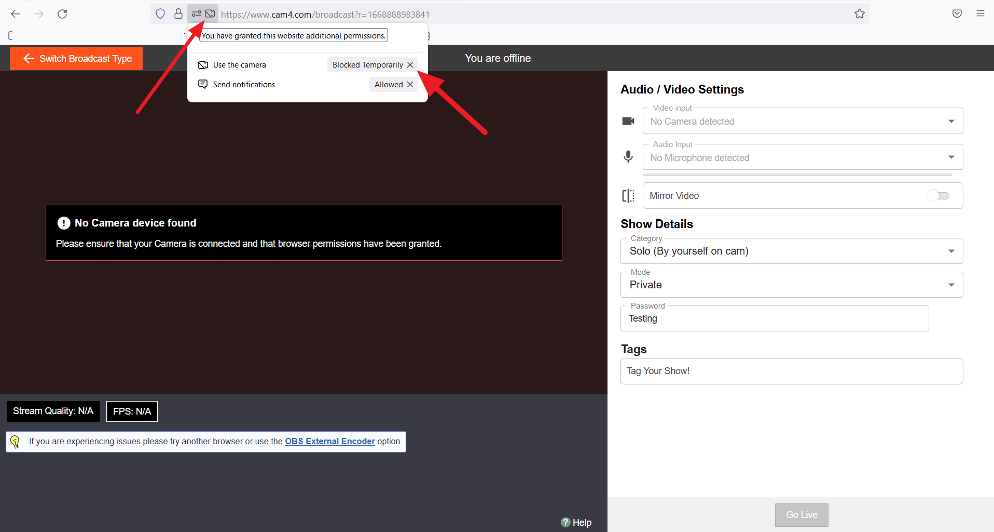
The camera and/or microphone are blocked/disabled in your browser. Please enable them by clicking the X button next to Blocked Temporarily (Firefox)
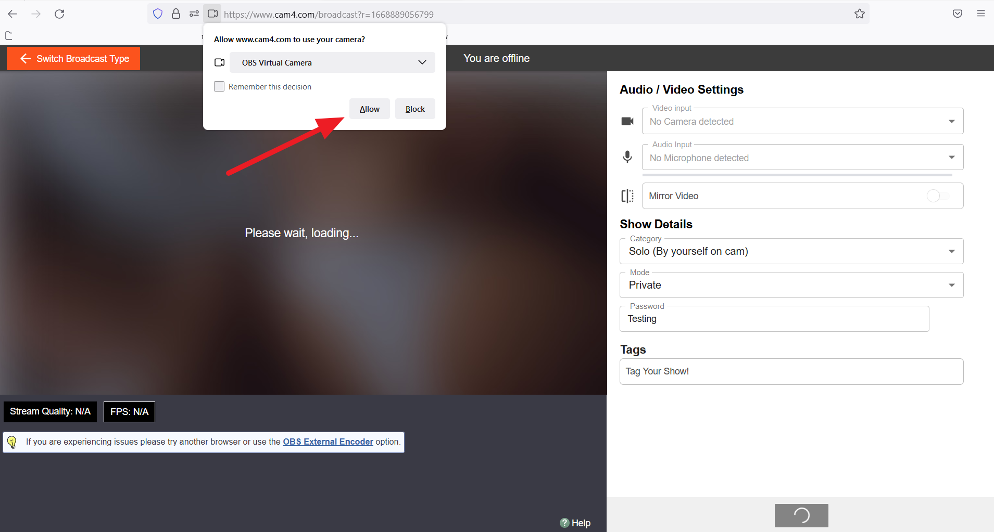
Next, refresh your Firefox browser window and then select Allow within the popup prompt. The camera you are currently using should be shown in that window. If not, use the drop-down arrow and select it.
Chrome/Edge users:
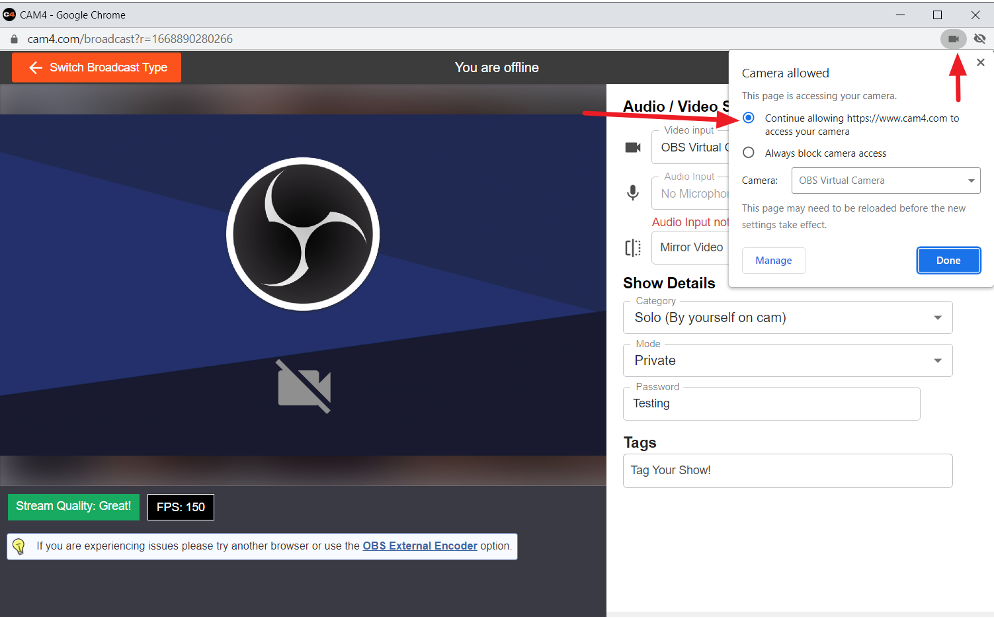
- Click the camera icon or lock icon located in the address bar (upper left, next to the CAM4 URL)
- Within the pop-up box, find "Camera" and "Microphone" settings
- Change both to "Allow" from the dropdown menus
- The camera you are currently using should be shown in that window. If not, simply select it using the drop-down
- Click Done when finished and refresh the page
Opera users:
Opera follows a similar process to Chrome. Please see Managing Camera Access and Managing Microphone Access for detailed instructions.
Please note: This may require a full browser restart rather than just a page refresh, as any open tabs or browser windows may interfere with the change.
To properly restart your browser:
- Close ALL browser windows and tabs (not just the CAM4 tab)
- Reopen your browser
- Visit CAM4 and try broadcasting again
Your camera and/or your microphone could also be in use by another app
In many cases, your browser might not be able to access them directly if they are already in use. To fix this please close any other tabs/browsers or applications that are currently using your camera.
Common applications that may be using your camera:
- Video chat apps (Zoom, Skype, Discord, Teams, Google Meet)
- Other browser tabs with video calls or streaming sites
- Photo/camera applications
- Virtual meeting software
- Other streaming platforms
Tip: If your camera's indicator light is lit before reaching the CAM4 website, it generally indicates something else is using your cam.
How to check:
- Close all other browser tabs
- Close all video/chat applications
- Check your system tray (Windows) or menu bar (Mac) for apps running in the background
- Restart your browser completely
- Try broadcasting on CAM4 again
Problems streaming on more than one platform
⚠️ IMPORTANT UPDATE: CAM4 now discourages using OBS Virtual Camera with Regular Streaming mode due to stream quality issues and viewer connection problems.
If you need to broadcast on multiple platforms, we recommend using External Encoder mode instead.
For Multi-Platform Broadcasting:
Use External Encoder Mode
- Install OBS Studio
- On CAM4: Click Broadcast button → Select External Encoder tab (not Regular Streaming)
- Copy your CAM4 stream key from the External Encoder tab
- Configure OBS to stream to multiple platforms using your preferred method:
- Multiple RTMP outputs in OBS settings
- Third-party multi-streaming services
- OBS plugins for multi-streaming
This provides better stream quality and reliability than using Virtual Camera with Regular Streaming.